Samples
Open Tools > Matter > Samples for Import, Open Scene and Read Guide actions, or use
Package Manager's Samples section. Each sample imports independently into
Assets/Samples/Matter/<version>. The chooser never overwrites existing copies.
Basic Setup
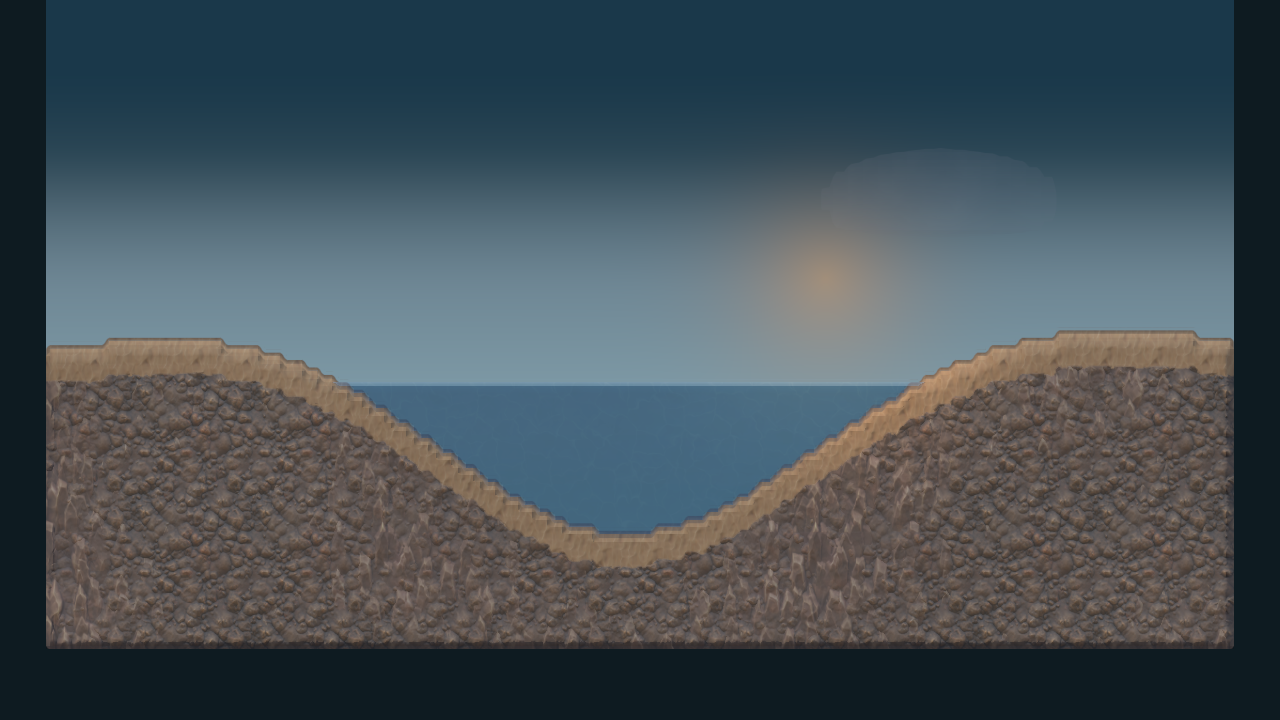
Start here for a configured 160 by 90 world with Rock, Sand, Water and Steam.
Import, open MatterBasic.unity, and enter Play Mode. No Showcase scripts or
content are required. Generated Basin is the bootstrap's default.
To start from your own world, paint and save a .matterworld asset, then select
Saved World and assign it on the bootstrap. A missing or incompatible saved
world reports an error instead of generating a replacement basin. Follow the
complete saved-world workflow.
Feature Showcase
Import and open MatterFeatureShowcase.unity. Let automatic TMP Essential
Resources setup finish; the manual fallback is Window > TextMeshPro > Import
TMP Essential Resources. Command-line builds should first run the sample's
MatterFeatureShowcaseTmpResources.PrepareForBuildFromCommandLine preparation.
The desktop carousel and Gallery expose nine worlds in seven feature groups:
| World | Try this |
|---|---|
| Landscape | Carve terrain and guide water and sand through it. |
| Flow | Pause sources while existing matter continues through channels and pools. |
| Heat & phases | Heat ice or water; cool steam to explore phase changes. |
| Reactions | Observe lava and water forming rock and steam. |
| Physics 2D | Drop sprite bodies into water and compare sand and solid ground. |
| Physics 3D | Compare 3D Unity bodies coupled to the same 2D cell world. |
| Lighting | Place lights to reveal cave shadows and material detail. |
| Day / night | Move the sun or enable automatic time progression. |
| Materials | Select a material and tune its presentation. |
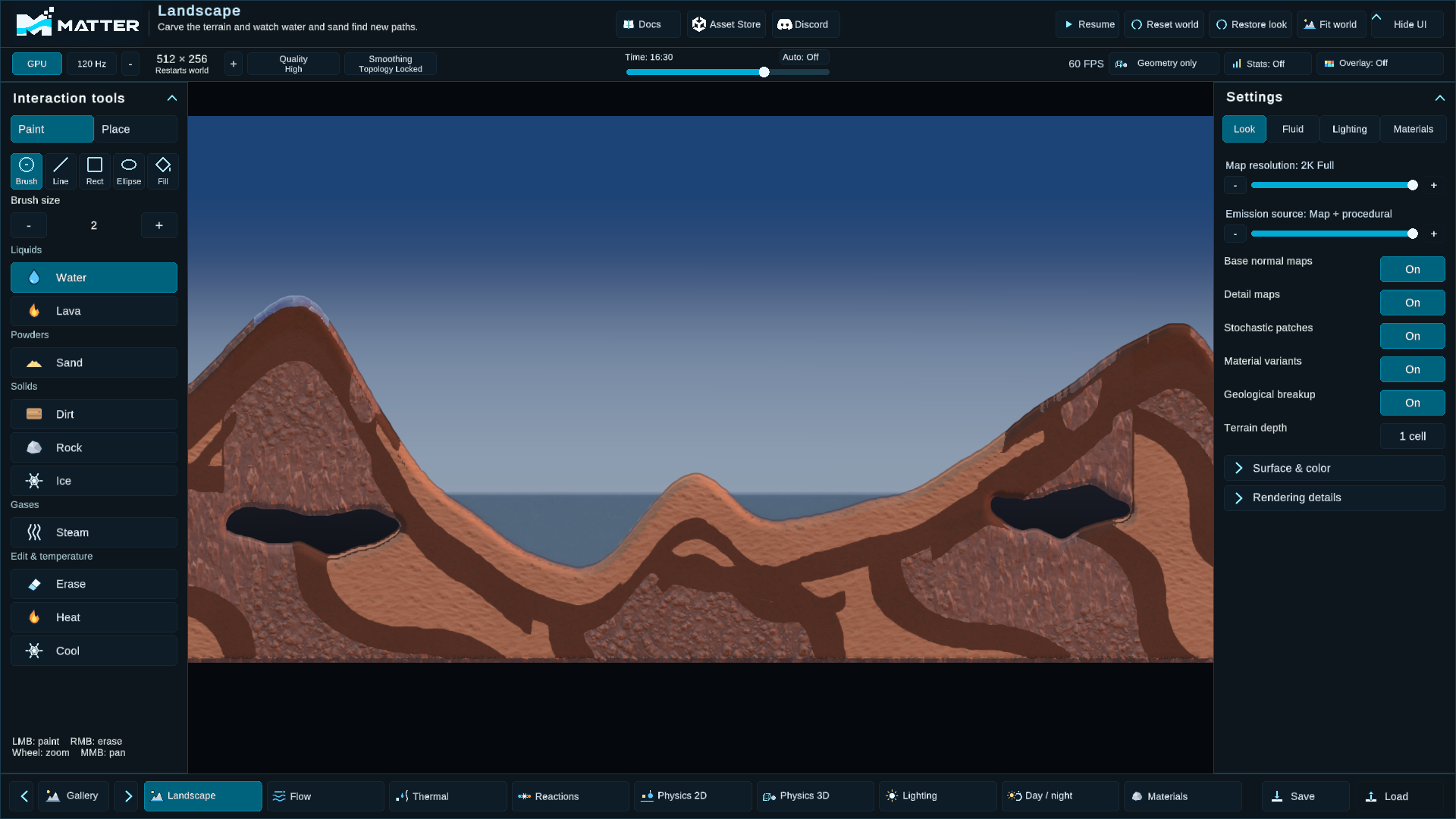
Both sidebars start open and collapse independently. Physics worlds select Place; other worlds select Paint. Paint groups liquids, powders, solids, gases and editing tools. Place groups 2D objects, 3D objects, lights and sources. Delete object removes the placed item under the cursor; Clear placed objects removes placed items without clearing cells or authored scenery.
Brush, Line, Rectangle, Ellipse and Fill are available. Drag a shape to preview and release to apply; Escape cancels. Rectangle and ellipse are filled; line uses brush size. Fill follows four-connected matching material. Right-click excavates terrain while preserving fluids. Heat and Cool work with the same shapes.
The Showcase's Lava starts at 230 °C and solidifies into Rock at 180 °C or below. Heat also conducts through existing rock, so a cooled crust can grow beyond the direct water contact. These sample thresholds use Matter's 0–255 °C cell range; they do not model real lava temperatures.
The right sidebar keeps Look, Fluid, Lighting and Materials in that order for every scene. Feature toggles reveal dependent controls; technical sections remain collapsible where applicable. Visual ripples/foam and physical waves/displacement are separate controls. See Rendering and Physics integration for their meaning.
The top bars provide playback, backend, CPU workers when relevant, 15–240 Hz tick rate, grid size, quality, Smoothing, time/Auto, Geometry only, Stats and Overlay. Grid resizing warns that it restarts the world; WebGL2 reports its fixed size and unavailable overlays. Source emission is controlled at the top of Fluid; turning it off does not pause existing matter.
Reset world restores cells, Fit world restores the camera, and Restore look restores presentation. Save/load remains available. Gallery sits between the lower-left arrows and has a separate card for every world. The Asset Store button opens the Matter listing. The Docs button opens the online manual.
Use Tab / Shift+Tab, arrows and Enter for controls. Escape closes Gallery without collapsing the sidebars. H hides/restores the UI; Show UI remains at the Hide UI position. Pause also freezes the lighting clock.
The highest grid settings are stress modes, not a performance guarantee.
Benchmark Suite
Import this sample independently and open Tools > Matter > Benchmarks. Quick Stress
is selected first. Release Stress, Visual Inspection and Backend Comparison show
prerequisites, workload, run status and the report folder. The included
MatterBenchmark.unity scene lets you inspect the fixture.
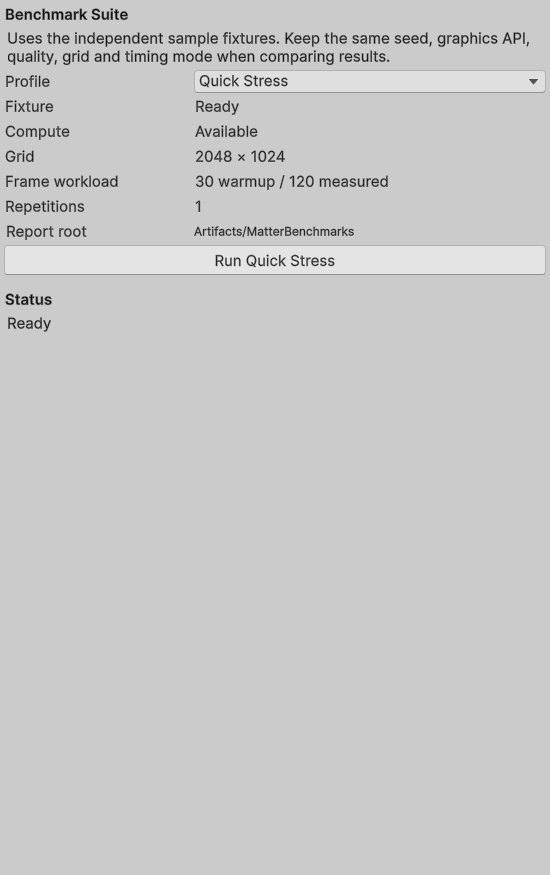
Use matching fixtures, seeds, grid sizes, graphics APIs and timing modes when comparing runs. An interrupted rendering run reports failure/interruption and restores the prior scene. Backend Comparison is synchronous and occupies the Editor until it completes. See Benchmarking for command-line entry points, artifacts and measurement definitions.
Imported sample ownership
Imported samples belong to your project. Customize those copies and keep them in source control. The Samples chooser preserves an existing imported copy instead of overwriting your changes.