Rendering and lighting
Matter separates authoritative cells from their appearance. Rendering, material maps, lighting, ripples and foam can change without editing the world or its simulation clock. Start with the renderers created by Tools > Matter > Quick Setup or the independent Basic Setup sample.
Connect the renderers
A typical scene has an opaque and a transparent MatterRenderer, both assigned
to the same MatterSimManager. Use the render modes to choose their phases.
TerrainMaterialField reconstructs boundaries; MatterLightingField supplies
grid lighting. GridAtmosphereRenderer is optional sky/cave presentation.
MatterCellHeatmapRenderer displays diagnostics rather than surface materials.
Use URP 17.6 and Linear color space. Assign the database's baked render library before tuning surface maps. A missing library gives palette-colored matter, not the authored texture appearance. See Substance authoring for the separate simulation and rendering bake actions.
Renderer settings or a shared profile
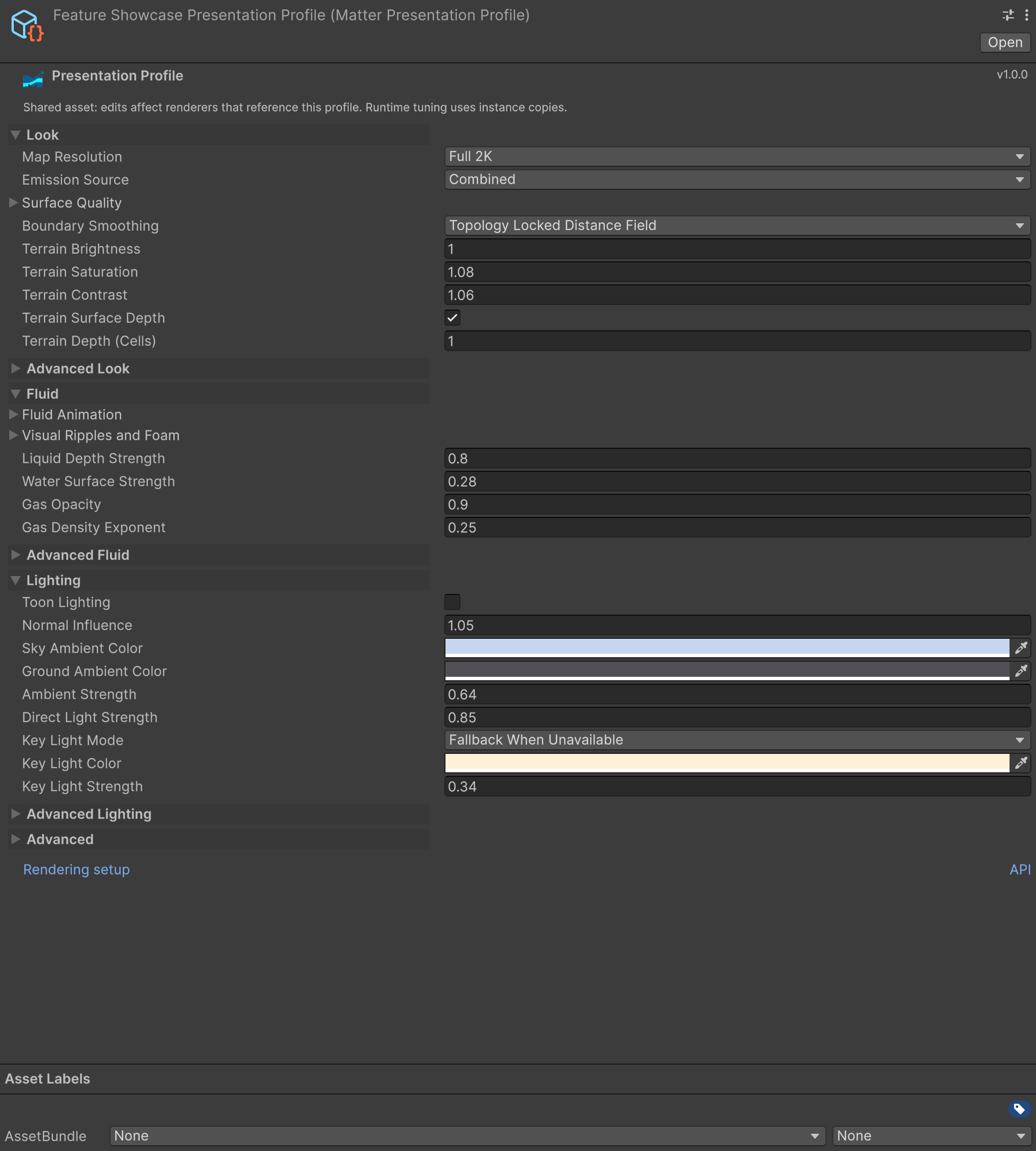
The renderer and presentation-profile inspectors organize settings into Look, Fluid, and Lighting. Common controls appear first and technical controls remain in collapsed sections. These authoring groups are separate from the Showcase's four runtime settings tabs.
- Without a profile, the component owns its embedded presentation settings.
- With a
MatterPresentationProfile, Select Profile opens the shared asset. Editing that asset affects consumers of that profile. Duplicate and Assign creates a separate asset for the selected renderers. - Runtime
ApplySettingschanges instance-owned values, not the profile asset.ResetToProfilereapplies the assigned profile. - Read
CaptureSettings(), change the required group, and apply the complete value once. Settings are value types: modifying a local copy alone does not update the renderer.
This complete helper changes one renderer's ripples while preserving its other settings. Call it from gameplay on Unity's main thread after assigning a renderer.
using System;
using MasterTech.Matter.Rendering;

public static class MatterRippleExample
{
    public static void SetRippleStrength(MatterRenderer renderer, float strength)
    {
        if (renderer == null) throw new ArgumentNullException(nameof(renderer));
        MatterRendererSettings settings = renderer.CaptureSettings();
        LiquidSurfaceDynamicsSettings dynamics =
            settings.FluidPresentation.LiquidSurfaceDynamics;
        dynamics.RippleStrength = UnityEngine.Mathf.Clamp01(strength);
        settings.FluidPresentation.LiquidSurfaceDynamics = dynamics;
        renderer.ApplySettings(settings);
    }
}
Look and material detail
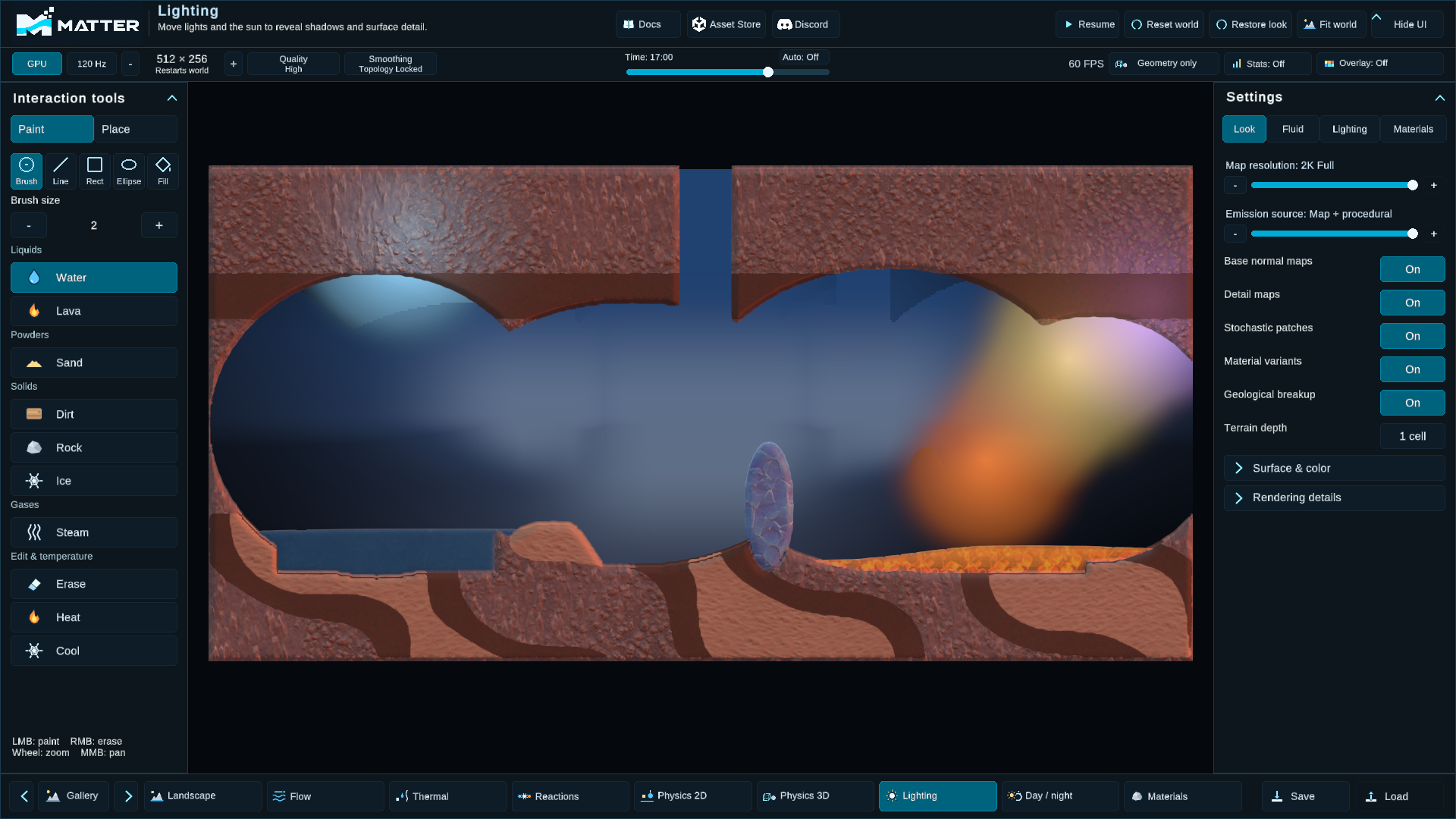
Choose a quality preset first, then tune individual features. Presets copy a configuration; subsequent changes form a custom look. Map resolution selects an available baked tier, not a new source texture resolution. The samples ship 2K sources; lower tiers reduce their memory and sampling cost.
Base normal maps supply large surface detail. Detail maps add fine grain. Stochastic patches reduce obvious tiling; material variants choose among the substance's authored texture sets. Geological breakup introduces broader variation. Height and boundary blending control transitions between materials.
Terrain surface depth and liquid surface depth draw collision-free visual caps. Height/normal relief affects shading; it does not excavate cells or change a collider. Begin with the Natural defaults and inspect the result at the camera distance used by the application. A stronger relief value is not necessarily a more readable surface.
Source/importer changes require Bake Rendering Data and refreshed texture tiers. Simulation-property changes instead require Bake Simulation Data. Generated texture arrays are project caches; edit the definitions and source maps, not those arrays. Per-material Showcase overrides are session-only.
Fluid appearance
Depth-aware optics estimates optical thickness from the visible contour. It is a bounded shading signal in reference cells, not a simulated third dimension. Per-substance absorption, opacity and refraction combine with the renderer-wide liquid depth response.
Visual ripples change normals; foam concentrates around motion and impacts. Texture animation moves the sampled maps. Gas opacity and density response control transparent gas shading. Liquid stream smoothing and airborne-powder shape have their own phase-detail controls.
None of these controls generates physical water waves or displaces water. For forces, obstacles and impact waves, see Physics integration. Visual animation uses simulation time, so pausing the simulation freezes it.
Lighting
Natural/Toon selects the lighting response. Direct-light strength controls the key light; ambient strength and sky/ground colors fill surfaces that receive less direct light. Normal influence changes how authored normals respond to that light. Shadow, occlusion and grid-light settings have separate costs.
MatterGridLight supplies local lighting. Emissive substances contribute through
their rendering data; thermal simulation and emission are independent settings.
The Showcase Lighting and Day / night worlds demonstrate local and directional
lighting respectively. Its time slider and Auto control are sample behavior,
not a requirement for using MatterLightingField.
Cell overlays
Diagnostic cell overlays follow the rendered front faces and projected terrain tops. Temperature displays the simulation's 0–255 °C range; Fill, Density and Horizontal Flow inspect their corresponding cell values. These views do not change the simulation. A standalone cell overlay remains available when the standard terrain and fluid renderers are absent.
CPU and browser presentation
Selecting CPU simulation on compute-capable hardware can retain the full presentation path through a presentation buffer. Compute-free rendering, such as the WebGL2 fallback, uses a simpler palette and grid-lighting path without the full authored texture and optical effects. A CPU simulation backend and a compute-free rendering device are different configurations.
For headless CPU simulation, disable the presentation buffer and omit rendering components. Compare supported configurations in Requirements.
Custom rendering integrations
Borrow presentation resources through TryGetPresentationResources and
reacquire after PresentationResourcesChanged. Never dispose those buffers or
retain them across a backend replacement. A failed lookup means the required
presentation resources are unavailable; skip that draw.
If a custom renderer calls SubstanceRenderLibrary.TryBind, reuse its
MaterialPropertyBlock and call ReleaseBinding(block) when it stops consuming
the library or changes libraries. Each consumer retains its own texture tier.
MatterRenderer handles this ownership automatically. See the
API integration guide for the supported entry points.