Editor tools
The Matter World Editor lets you create and change .matterworld documents
directly in the Unity Scene View. It works in Edit Mode, supports normal Unity
Undo, and can run a disposable simulation preview before you decide whether to
keep the result.
Component inspectors
Matter uses compact Unity controls in light and dark themes. Common settings are visible first; detailed supported controls live in Advanced and runtime information in Diagnostics. Foldouts and authoring tabs retain their state. The layout uses the available content width, including the Substances window.
- MatterSimManager: setup, backend, grid dimensions and solver cadence. CPU workers appear for CPU use. Allocation controls explain why they are locked while initialized; save or close a dirty World Editor document before changing its allocation. Advanced contains chunk size, edit capacity and catch-up limits.
- MatterRenderer / Presentation Profile: Look, Fluid and Lighting share one settings editor. An assigned profile is explicitly shared: Select Profile edits that asset; Duplicate and Assign creates a separate copy for selected renderers. Runtime tuning never changes the shared asset.
- Substance Definition / Database: identity, phase behavior, surface maps, thermal behavior and object interactions. Mixed-phase selections expose common fields without pretending to be Liquid. Baking Simulation Data and Rendering Data are separate actions; stable-ID ordering and removal safeguards remain.
- MatterLightingField, TerrainMaterialField, GridAtmosphereRenderer, MatterCellHeatmapRenderer, MatterGridLight and MatterQuad expose focused references and controls, actionable validation and live status.
- Substance Render Library: generated output; edit the owning definitions and rebake. Texture arrays are read-only under Diagnostics.
Set up and repair a scene
Open Tools > Matter > Quick Setup..., choose the active scene's simulation and a substance database, and review the setup summary. A blank scene gets a new simulation; compatible fields and renderers are reused. When several simulations or databases exist, choose the intended target explicitly. Setup runs in Edit Mode, records Undo and opens the World Editor. Starter database creation uses unique paths.
Browse substances and samples
Tools > Matter > Substances opens the searchable database editor. The old Development entry remains available. Drag the divider to resize the browser, clear filters when results are empty, and expand Validation to inspect issues and select their assets. Validation is cached between edits; Validate refreshes it explicitly. Database order continues to define stable IDs, independent of the search display.
Tools > Matter > Samples offers Basic Setup, Feature Showcase and Benchmark Suite individually, with Import, Open Scene and Read Guide. Import All is explicit. Existing imported copies are preserved. Tools > Matter > Import Samples opens the same chooser. Scene opening uses Unity's normal unsaved-scene prompt.
Technical settings are grouped in collapsed Advanced sections. Import the Benchmark Suite sample to measure simulation and rendering workloads.
Open the World Editor
- Open a scene with a configured
MatterSimManager. - Select the GameObject that contains the manager.
Unity activates the component tool and displays Matter World Paint and
Matter World Settings in Scene View. The selected manager needs a valid
SubstanceDatabase. The editor prepares an uninitialized backend in Edit Mode.
Fresh layouts place Paint on the left and Settings on the right. Drag the overlay headers to dock or float them. Paint starts at 260 px and resizes from 220 to 420 px; Settings starts at 360 px and resizes from 300 to 520 px. Existing docking preferences are retained. Use the Scene View Overlays menu to show either overlay if it is hidden.
Both overlays limit their height to the available Scene View space and scroll their contents. Paint tools use fewer columns in narrow panels so selected labels remain readable. For more room to work, maximize Scene View with Shift+Space while it has focus, or resize or reposition the overlays.
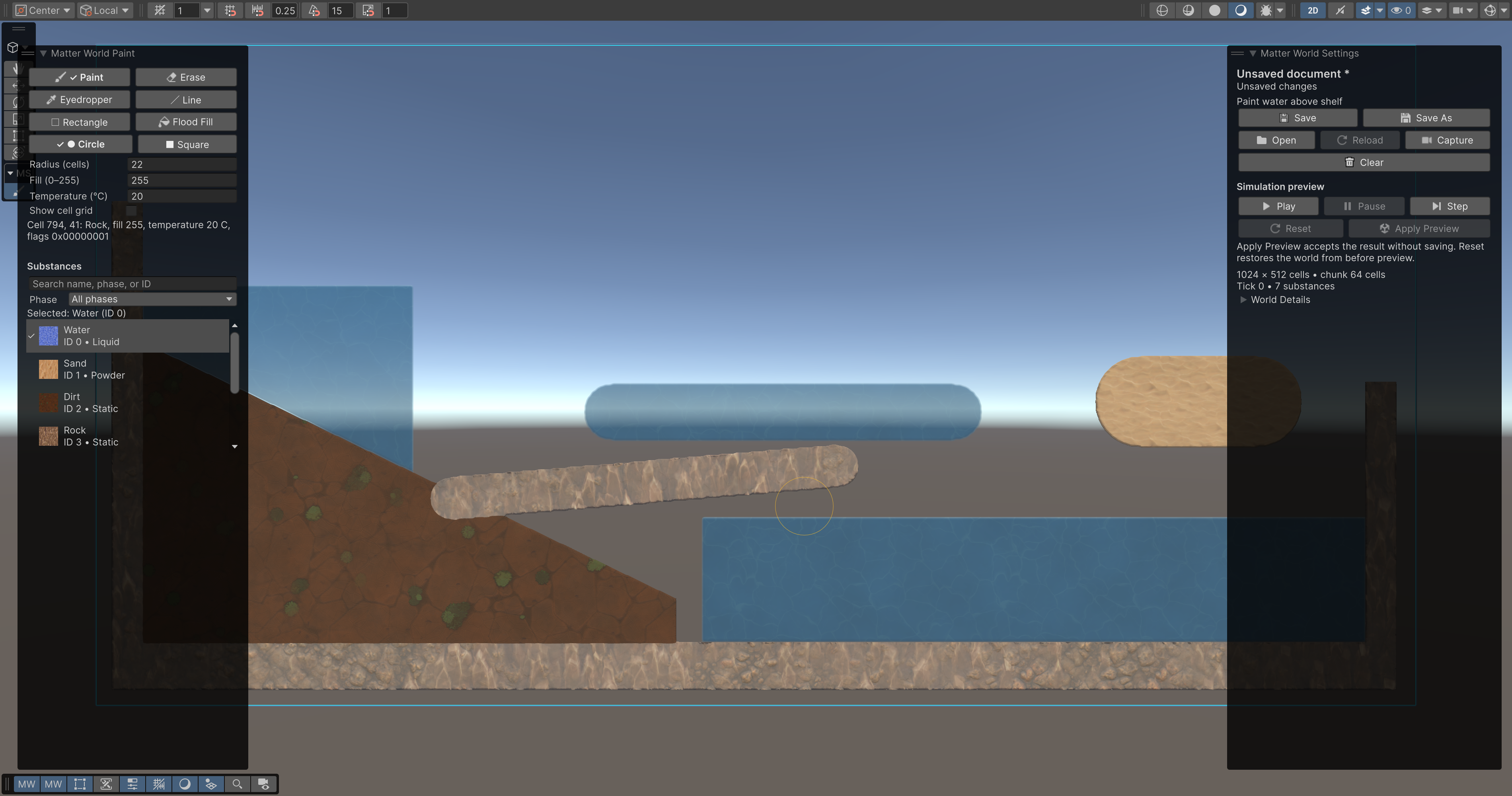
Unity 6000.6.2f1, dark theme: Paint controls, the substance palette, and a saved world at tick 0.
Start or open a document
The top of Matter World Settings shows the filename, an asterisk for unsaved edits, preview state, and any actionable error. Hover the filename for its full path. Document controls appear directly below this status.
| Command | Result |
|---|---|
| Open | Opens an existing .matterworld document into the selected manager. |
| Clear | Offers to save, then clears every authored cell while keeping the layout and substances. |
| Capture | Copies the selected manager's current cells and tick into a new authored document. |
| Save | Writes the document to its current path, or asks for a path on first save. |
| Save As | Writes the world to another .matterworld file. |
| Reload | Offers to save unsaved work, then reads the source file again. |
During preview these saving actions read Save Preview and Save Preview As. The preview pauses before the destination dialog. A successful write accepts and saves the visible cells and tick, then ends preview. Canceling or a write failure retains the current document, source path, conflict state, and previous running or paused preview state.
Files saved under Assets import as MatterWorldAsset objects. Their inspector
shows dimensions, encoding, tick, world mapping, substance schema, and metadata.
Assign an Editor Target and select Open in World Editor to continue editing.
Paint and shape the world
Choose one of the six labeled tools in Matter World Paint:
- Paint and Erase apply a continuous circle or square brush.
- Eyedropper selects the substance and cell values under the pointer.
- Line draws a continuous line between drag endpoints.
- Rectangle draws a filled or outlined rectangle.
- Flood Fill replaces the connected region under the pointer.
Contextual settings show Radius (cells), Fill (0–255), and Temperature (°C) where relevant. Radius ranges from 0 to 128 cells; temperature uses Matter's encoded 0–255 °C range. Selecting a substance supplies its standard temperature. Enable Show cell grid for alignment; the grid is visible when zoomed in far enough to remain readable. Hovered-cell information appears beside these controls.
The virtualized palette shows a swatch, name, stable ID, and phase. Search by name or phase, ignoring case, or enter a numeric ID. Use Phase to narrow the list. Filtering preserves the current selection; the selected-material label indicates when it is hidden by a filter. Missing definitions show a diagnostic row and cannot be painted. IDs remain the ordered indices in the database.
Use Tab to move through controls and arrow keys to select palette entries. Enter in the Paint overlay returns focus to Scene View. Escape in search clears the query; Escape during a brush stroke cancels that stroke. Unity's Alt and mouse navigation remains available. Moving focus away during a drag finishes the current brush stroke and abandons an unfinished line or rectangle.
Undo and document history
Each brush stroke, line, rectangle, fill, or World Details edit participates in Unity Edit > Undo and Edit > Redo. Ordinary saves retain history: undoing away from the saved state marks the document dirty, and returning to that state clears the marker. Creating another branch of edits remains dirty. History retains the existing 256 MiB limit.
While preview is paused, consecutive strokes and eyedropper use preserve history. An actual simulation tick starts a new paint history segment and displays an explanation. Refreshing the interface does not reset history. Load, Clear, Capture, Reset, and Apply Preview establish new baselines.
Preview simulation safely
The Simulation preview controls let you inspect and edit a simulated result:
- Play advances continuously in Edit Mode.
- Pause stops simulation without discarding the visible result.
- Step advances one simulation tick.
- Reset restores the exact state and tick from before preview.
- Apply Preview accepts the visible cells and tick without saving.
Painting remains available during preview. Simulation pauses for the duration of a stroke, then resumes if it was running. Save Preview accepts and saves the visible result in one action. To keep editing without writing a file, choose Apply Preview and save later.
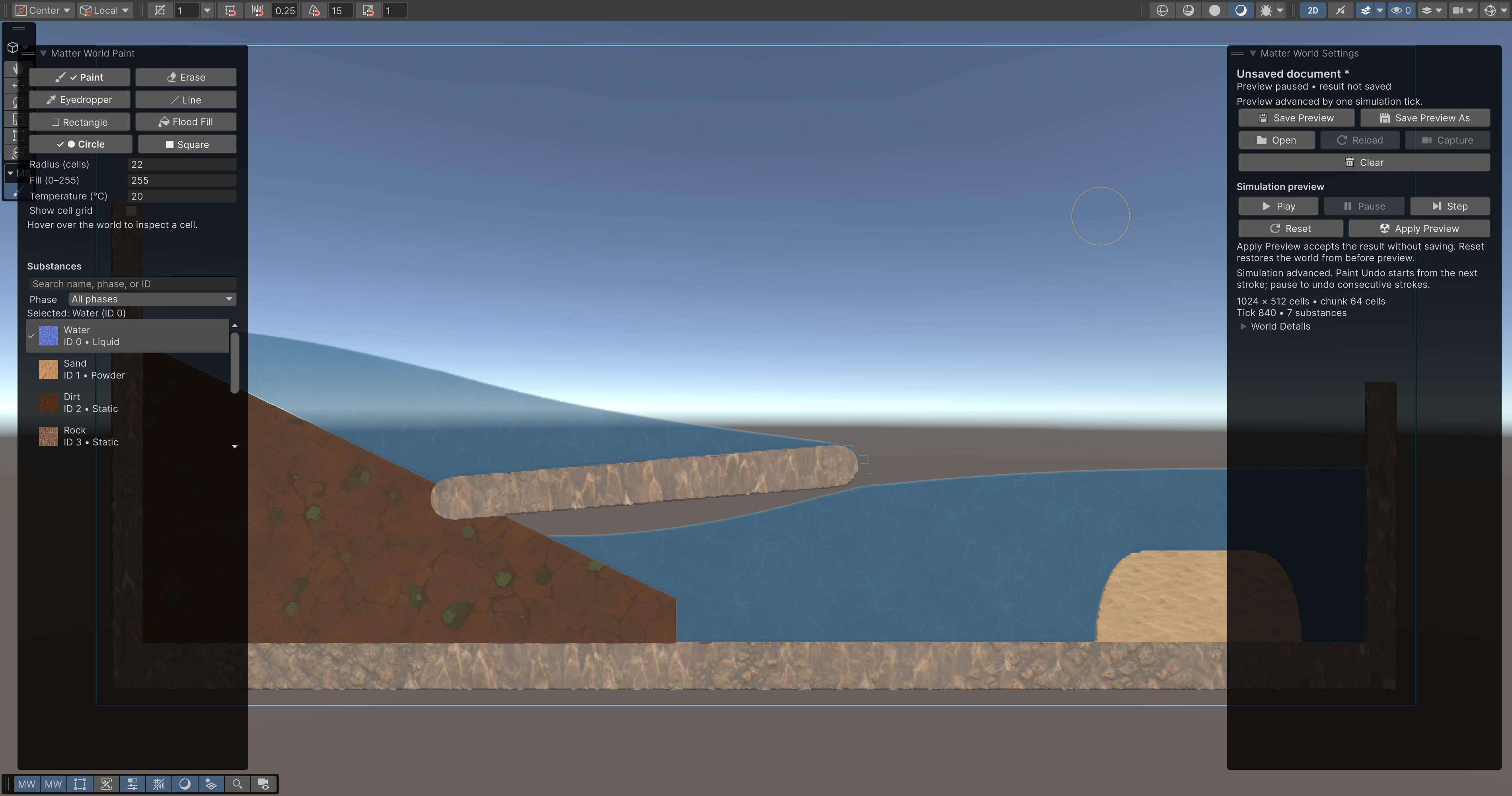
Paused GPU preview. Save Preview, Apply Preview, and Reset state their separate purposes; the history notice explains the simulation boundary. World Details remain disabled until the preview is applied or reset.
When closing the tool with preview active, Keep accepts the simulated world and Revert restores the state from before preview. Unsaved accepted work is written to local recovery before the session closes.
Edit World Details
Expand the initially collapsed World Details section in Settings to edit name, description, application version, and opaque user JSON. Text changes commit when the field loses focus and support Undo and dirty tracking. Matter stores the JSON text unchanged; it does not interpret it.
Details are disabled during preview. Choose Apply Preview or Reset first.
These fields travel with the .matterworld document and do not configure scene
GameObjects.
Recovery and file conflicts
Recovery data stays under Library/MatterWorldEditor. Each background write
prepares a separate snapshot folder containing the world and its recovery
metadata. Only the current session can publish that complete pair by adding its
complete marker. The previous snapshot is retained as a fallback if the latest
one cannot be read. Older
loose-file recovery data remains readable.
If a recovery write fails, Settings shows a warning and Retry Recovery beside the document controls. Hover the warning for the error details. You can retry immediately or save the world; automatic retries use an increasing delay. Reload and quit callbacks write a final snapshot without waiting for editor-thread continuations. Deleting a target releases session resources and retains available recovery data.
Reopening the same saved scene target can offer matching recovery data after
reload or Play Mode transitions. Unsaved scene objects have session-local
identities: save the scene and world for durable recovery across restarts.
If a deleted target cannot be reopened, preserve its recovery folder. Inside the
matching Recovery-… directory, snapshot-… folders that contain a complete
file sort from oldest to newest by name. Copy world.matterworld from the newest
readable completed snapshot and open that copy on a compatible replacement
target. Folders without a complete file are not offered for recovery.
An external file conflict blocks Save but leaves Save As available: choose a destination different from the conflicted source, or choose Reload to read that source. Database conflicts block both saving actions; restore the database or reload/close the session before continuing. The explanation and recovery choices remain in Settings.
Recovery is local and does not replace saving a .matterworld file or version
control. If final recovery fails during a normal close, the session stays open
so you can save or retry.
Recommended workflow
- Configure and validate the target's
SubstanceDatabase. - Open a document, clear the world, or capture the current simulation.
- Paint using the searchable palette and Undo.
- Add identifying World Details and save.
- Preview with Step or Play, painting further if needed.
- Reset to discard the preview, Apply Preview to keep editing, or Save Preview to accept and save the visible result.
For runtime persistence examples, see Getting started. For authored cells, simulation, and rendering, see Architecture and core concepts.