Substance authoring
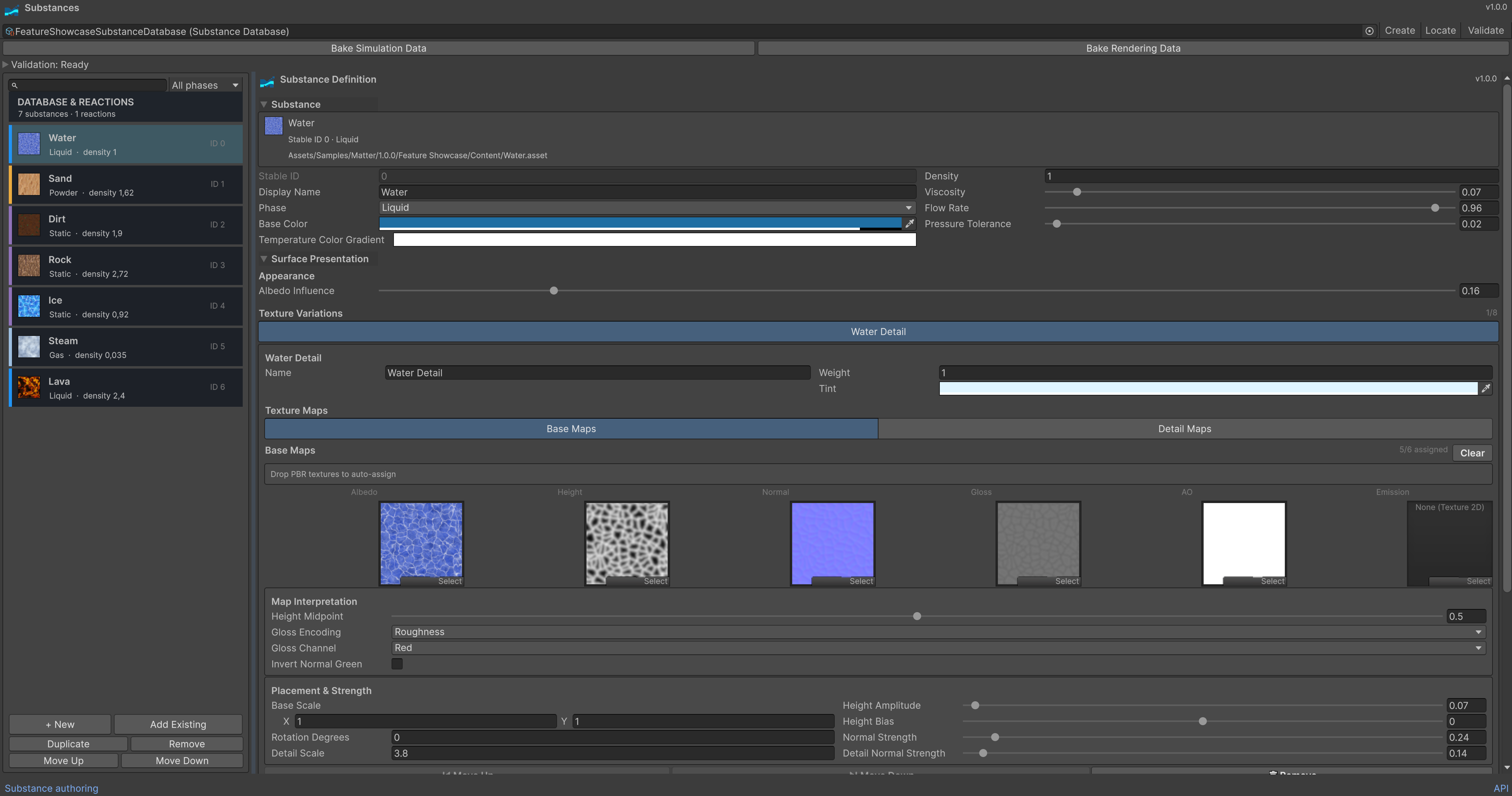
Matter keeps simulation behavior, surface presentation, database ordering, and generated GPU data explicit. Use the Substances window for day-to-day authoring and the individual asset Inspectors for focused edits.
Open the database browser
Choose Tools > Matter > Substances. The window provides:
- A database selector with validation and bake status.
- Search and phase filters for the selected database.
- Stable material IDs beside every substance.
- Focused Substance Definition and Substance Database Inspectors.
- Creation, duplication, assignment, removal, and guarded reordering actions.
- Separate simulation-data and render-library bake commands.
Double-click a substance in the browser to locate its asset. Selecting a
SubstanceDefinition or SubstanceDatabase in the Project window also uses the
same focused Inspectors.
Preserve stable IDs
A substance's database index is its material ID. Matter worlds, persistence documents, cell data, and network snapshots store this number rather than the asset reference.
- Append new substances after a database has been used in saved or replicated content.
- Do not sort a production database alphabetically.
- Reorder only before content ships, then rebake and recreate affected fixtures.
- Removing an entry does not delete its asset, but it changes every following ID.
The browser requires confirmation before reordering. The database Inspector shows the stable ordering without offering drag reordering.
Edit a substance
The Substance Definition Inspector groups authoring values by purpose.
Identity
Set the customer-facing display name, phase, Base Color, and Temperature Color Gradient. Base Color defines the substance's authored appearance. The gradient maps encoded cell temperature from 0 °C on the left to 255 °C on the right; Matter blends from Base Color toward its right edge. The stable ID is read-only because the owning database determines it.
Simulation
- Density controls relative material mass.
- Viscosity resists motion.
- Flow Rate controls how readily matter moves through available cells.
- Dispersion controls lateral spreading.
- Compressibility allows gas-like volume response.
- Starting Temperature is the temperature assigned when the substance is painted.
Tune these values with deterministic fixtures before changing production content. The CPU and GPU backends consume the same baked records.
Surface presentation
Presentation settings do not change the simulation cell or substance GPU ABI.
They are baked into the database's SubstanceRenderLibrary.
- Tint and Texture Color Influence blend authored color with source maps.
- Transparency chooses the surface model and liquid/gas optical response.
- Mapping controls repeat, stochastic-patch, or world-clamp placement.
- Variation controls deterministic texture-set region selection.
- Height Blending and Boundary Blending shape transitions.
- Lighting controls authored light, rim, surface, and emission response.
- Texture Sets contain weighted base/detail PBR map variants. Enabled sets require an albedo/opacity map; Matter supports up to eight sets per substance.
All maps in one texture set share selection and transforms, keeping albedo, height, normal, gloss, ambient occlusion, and emission aligned. Detail maps are part of the same per-substance system; there is no renderer-level material-name fallback.
Temperature and phase changes
Set freeze and boil points in degrees Celsius, then reference optional frozen, boiled, and condensed products. Every referenced product must be present in the same database. The freeze point cannot exceed the boil point.
Active heating and cooling
Use Target Temperature (°C), Self Strength (°C/s) and Surrounding Strength (°C/s) to make a substance actively maintain temperature. Self Strength moves each occupied cell toward the target. Surrounding Strength contributes to each of its four occupied edge neighbors, also toward the target; diagonals and empty cells are excluded. Both strengths default to zero.
These are active heat sources or sinks. Their target is independent of the cell's current temperature. Ordinary heat diffusion continues to conduct heat between substances, including rock, and can carry it beyond the immediate neighbors. For example, a hot material can maintain itself while warming water; a cooling material can lower the temperature of adjacent lava until it solidifies. Starting Temperature only affects newly painted material.
Strength is the maximum change per simulated second, independent of Tick Hz and pressure iterations. Overlapping controls combine their rates and use a strength-weighted target. Rates are limited to 0–65535 °C/s. Temperatures retain the existing whole-degree 0–255 °C representation. Internal time/rate quantization allows slow effects at 240 Hz; positive rates below 1/4096 °C/s use that minimum. Fractional timing is transient and restarts on world load; saved cell temperatures and material IDs are preserved. Backend switching retains the simulation clock.
Thermal inspector edits invalidate loaded databases' simulation bakes. Use
Bake Simulation Data after authoring or calling ConfigureTemperatureControl.
Rendering data does not need rebaking for these controls. Existing definitions
remain passive until a strength is enabled.
Heating and cooling objects
Choose GameObject > Matter > Heating Source or Cooling Source, then assign the destination simulation. One Matter Thermal Source component supports Heat Only, Cool Only, or Maintain Temperature. Set its target, strength, radius in grid cells, and optional linear edge falloff. With non-square cells, the circular grid region appears elliptical in world space. The source uses the simulation's XY mapping, including when mounted on a Unity 3D object.
Sources affect existing occupied cells without painting or replacing material. They run once per simulation tick, pause with the simulation and run in Simulation Preview. Select a source to see its range in the Scene view. Disabling or deleting it immediately stops its contribution. A missing simulation reference or invalid settings leave it inactive.
Source objects belong to Unity scenes/prefabs; .matterworld files save the
resulting cells, not GameObjects. The Showcase provides both tools under
Place > Thermal, with placement previews, object deletion and the existing
Sources toggle.
To create a heater from a gameplay component, assign an existing simulation in the Inspector. The simulation owns its initialization and shutdown; this component owns only the source it creates. Sources can be registered before initialization and start affecting cells when ticks begin.
using MasterTech.Matter.Simulation;
using UnityEngine;

public sealed class ExampleMatterHeater : MonoBehaviour
{
    [SerializeField] private MatterSimManager simulation;
    private GameObject sourceObject;

    private void OnEnable()
    {
        if (simulation == null)
        {
            Debug.LogError("Assign a Matter simulation to the heater.", this);
            enabled = false;
            return;
        }

        sourceObject = new GameObject("Heater");
        sourceObject.transform.SetParent(transform, false);
        var source = sourceObject.AddComponent<MatterThermalSource>();
        source.Configure(simulation, targetCelsius: 150,
            degreesPerSecond: 20f, radiusCells: 8f,
            sourceMode: ThermalSourceMode.HeatOnly, falloff: 0.5f);
    }

    private void OnDisable()
    {
        if (sourceObject == null) return;
        sourceObject.SetActive(false); // Stops heating immediately.
        Destroy(sourceObject);
        sourceObject = null;
    }
}
Interaction
Configure flammability, terrain collision, and optional dynamic-object layer masks. Displacement and impact-wave masks are evaluated only by integrations that enable those coupling features.
Author reactions
Open Database & Reactions in the browser or select the database asset. Reaction cards show the readable equation:
Substance A + Substance B -> Product A + Product B
All four references must belong to the same database. Rate must be greater than zero and at most one. A bidirectional rule also bakes the reversed input pair with reversed product order. Only one rule may own an ordered input pair.
Validate and bake
Use the two bake operations deliberately:
- Bake Simulation Data validates definitions and reactions, assigns IDs from database order, and generates deterministic CPU/GPU records.
- Bake Rendering Data validates presentation inputs and creates or updates normalized texture arrays plus per-substance render records.
The browser and database Inspector show simulation and presentation validation separately. Fix every error before building. A missing render library is allowed for simulation-only use; rendered cells then use authored cell colors without surface textures.
Recommended workflow
- Create or select a database in the browser.
- Create substances and establish their permanent order.
- Configure simulation properties and phase transitions.
- Add reactions after every referenced substance belongs to the database.
- Configure surface maps and presentation settings.
- Bake simulation data, then bake the render library.
- Run the Basic Setup scene or a project fixture and compare CPU/GPU behavior.
- Save worlds only after the final production ID order is established.
See Getting started for scene setup, Editor tools for world painting, and Troubleshooting for runtime diagnostics.
The Substances window has a resizable divider and persistent search/phase filters. Expand Validation for inline issues; Select locates the associated definition or database. Validate refreshes the cached results. Mixed-phase multi-selection shows shared fields and explains why phase-specific controls are unavailable.
Detailed mapping, variation, blending and per-substance lighting controls remain in Advanced Surface Settings. Optional dynamic-object layer masks are in Advanced Interactions. Both sections start collapsed and retain their state.